CustomFolder logo

CustomFolder 4.0.0

  • User Rating:
    ★★★★★
    ★★★★★
    5.0 ★ 1Votes
  • Requirements:
    Windows
  • Version: 4.0.0
  • Latest updated: 3 weeks ago
  • License: Freeware  
  • Publisher: GDZ Software
  • Size: 2.3 MB
× app stores

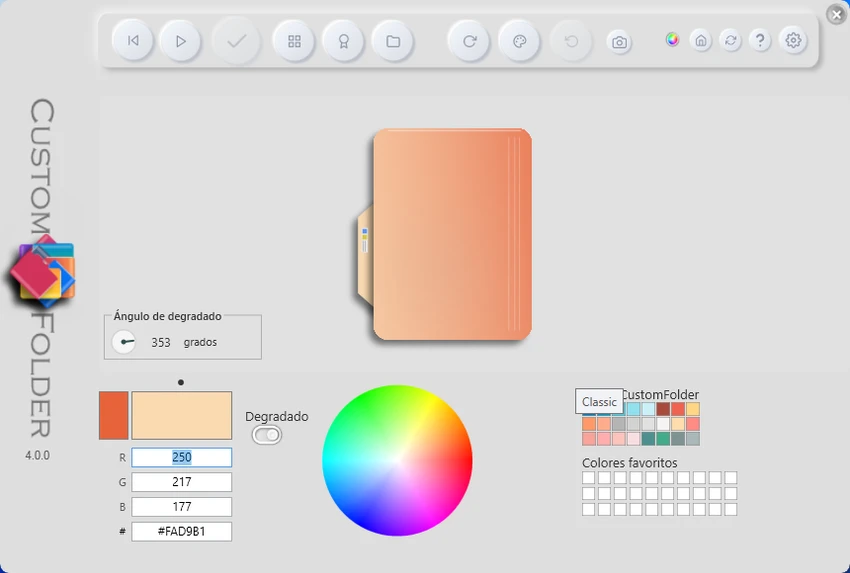
CustomFolder is a Windows personalization tool designed to change the appearance of folders inside File Explorer. It allows users to customize folder icons using different colors, styles, and emblems, making it easier to visually organize directories and distinguish between different types of content at a glance. Instead of relying on the default Windows folder icons, the tool adds a layer of visual control by letting users assign themed appearances to folders. These changes are applied directly through File Explorer, integrating into the normal right-click workflow using a Shift + right-click shortcut.

The software is lightweight and focused specifically on folder appearance customization rather than full desktop theming. It works by adding a context-menu extension that opens customization options when interacting with folders.

Features of CustomFolder

  • Customize Windows folder icons with different colors and styles
  • Add emblems to folder icons for extra visual labeling
  • Access customization via Shift + right-click context menu
  • Apply and switch between saved folder themes quickly
  • Browse built-in emblem and style collections
  • Position emblems using a 9-point alignment system
  • Restore or remove applied folder customizations easily
  • Integrates directly with Windows File Explorer
  • Supports Windows 7 through Windows 11

Interface and Usability

CustomFolder does not rely on a traditional standalone interface. Instead, it integrates directly into File Explorer through a context-menu shortcut. Users access the tool by holding Shift and right-clicking on a folder, which opens the customization options.

The available interface focuses on selecting colors, icons, and emblems rather than managing complex settings. Users can browse available designs and apply them with a single click. Saved themes can also be reused, making it faster to apply consistent styles across multiple folders. While there is a quick start guide included, it plays an important role in explaining how to access the tool since the workflow is not immediately visible after installation.

Who Should Use CustomFolder?

  • Want to visually organize folders in Windows File Explorer
  • Work with large numbers of files and need quick visual identification
  • Prefer color-coded or themed folder structures
  • Customize their desktop environment for productivity or aesthetics
  • Look for a lightweight folder icon customization tool

Conclusion

CustomFolder offers a simple and focused way to personalize folder appearance in Windows. By adding colors, icons, and emblems directly into File Explorer, it helps improve visual organization without requiring complex system changes.

Pros & Cons

✓

Pros

  • Simple folder customization through context menu
  • Supports colors, icons, and emblems
  • Lightweight and focused tool
  • Quick application and theme switching
  • Integrates directly with Windows File Explorer
✕

Cons

  • No traditional main interface or dashboard
  • Requires Shift + right-click shortcut (not immediately obvious)
  • Limited to folder appearance customization only

Frequently Asked Questions

What is CustomFolder used for?

CustomFolder is used to personalize Windows folders by changing their colors, icons, and adding emblems. This helps improve visual organization in File Explorer, making it easier to quickly distinguish between different folders without opening them.

How do I open CustomFolder in Windows?

After installation, CustomFolder is accessed directly inside File Explorer. You need to hold Shift and right-click on any folder to bring up the customization options, where you can apply colors, icons, or emblems to that folder.

Does CustomFolder have a normal user interface?

No traditional standalone interface is used. CustomFolder works through Windows File Explorer using a context-menu system. When activated, it opens a customization view where users can select and apply folder styles, icons, and emblems.

What are emblems in CustomFolder?

Emblems are small overlay icons that appear on top of folder icons. They act as visual markers to help categorize folders more clearly, such as distinguishing project folders, priority items, or different types of content.

Can I change or remove folder customizations later?

Yes. Any applied customization can be removed or replaced at any time. Users can switch to another saved theme or restore the folder back to its default Windows appearance whenever needed.

Recommended apps [Freeware]:
  • XMedia Recode 3.6.3.1 XMedia Recode logo Free video and audio converter with GPU acceleration, batch conversion, editing tools, and subtitle support
  • HeidiSQL 12.20 HeidiSQL logo manage MySQL, MSSQL, and databases, run queries, edit tables, and export data on Windows
  • Media Player Classic Black Edition 1.9.0 Media Player Classic Black Edition logo a free media player with a modern dark interface and YouTube playback
  • ShareX 21.0.0 ShareX logo a free Windows tool for screenshots, screen recording, annotation, and instant file sharing with cloud support
  • PropertySystemView 1.22 PropertySystemView logo View and modify Windows file metadata, timestamps, and system properties with this portable utility designed for advanced users.
  • Fire Toolbox 45.1 Fire Toolbox logo Customize Amazon Fire tablets with tools for app management, interface changes, backups, troubleshooting, and Android feature support.
Recommended apps [Shareware]:
  • VMware InstallBuilder Enterprise 26.5.1 VMware InstallBuilder Enterprise logo It helps developers quickly create professional installers, RPM packages, and software bundles for multiple platforms.
  • Syncovery 12.3.4 Syncovery logo fast backup and file synchronization tool with real-time sync, versioning, and advanced automation features
  • Cubase Pro 15.0.30 Cubase Pro logo a professional DAW for recording, composing, editing, mixing, and music production
  • BackUp Maker 8.406 BackUp Maker logo Protect important files with BackUp Maker using scheduled backups, AES encryption, ZIP archives, and cloud or FTP storage
  • FolderMatch 5.1.3.0 FolderMatch logo Compare folders, synchronize files, find duplicates, and batch rename files with FolderMatch for Windows.
  • FileSearchEX 1.1.0.9 FileSearchEX logo Quickly locate files, folders, and document content with a lightweight Windows search tool supporting network shares and PDF searches.