


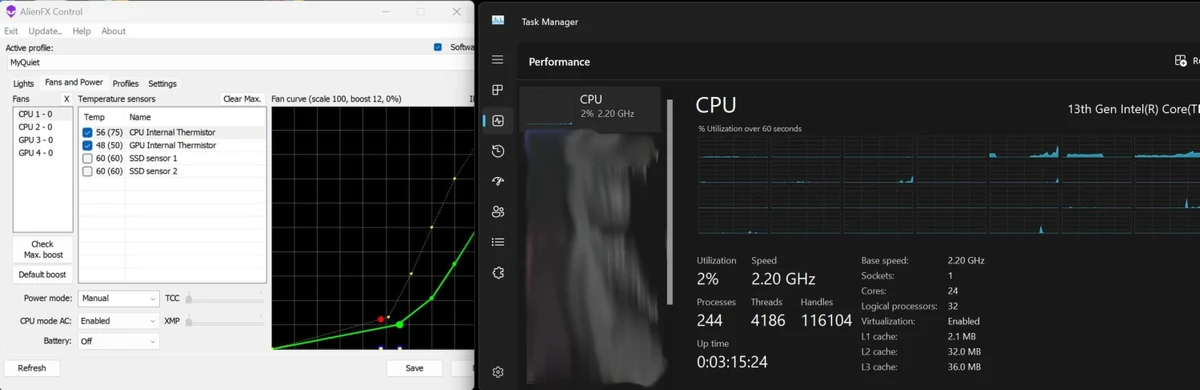

AlienFX Tools is a lightweight utility suite built for compatible Alienware systems, giving users comprehensive control over lighting, cooling, power profiles, and hardware monitoring. Designed as an alternative to Alienware Command Center (AWCC), the suite combines several specialized tools into a compact package without requiring the full AWCC software. Whether you want to customize RGB lighting, fine-tune fan behavior, monitor hardware temperatures, or automate power profiles, AlienFX Tools provides an efficient solution tailored for Alienware owners.
Features of AlienFX Tools
- Lightweight alternative to Alienware Command Center (AWCC)
- Control Alienware RGB lighting and lighting effects
- Manage system fan speeds and cooling profiles
- Configure power modes and performance settings
- Create and switch between multiple operating profiles
- Assign profiles to specific applications or keyboard triggers
- Monitor hardware temperatures and overall system health
- Display selected temperature sensors in the Windows system tray
- Command-line utilities for controlling lighting, fans, and power settings
- Dell LightFX library emulator for compatible LightFX and AlienFX games
- Backup, restore, or remove tool configuration through the included configuration script
Included Utilities
- AlienFX Control – Central application for managing lighting, fans, temperatures, power settings, and hardware effects.
- AlienFX Monitor – Displays system health information and hardware sensor data.
- AlienFX-CLI – Command-line tool for controlling AlienFX lighting.
- LightFX – Dell LightFX library emulator supporting AlienFX-compatible games.
- AlienFan GUI – Utility for configuring fan behavior and power modes.
- AlienFan-CLI – Command-line fan and power management utility.
- AlienFX-Config – Script for backing up, restoring, or deleting configuration settings.
User Experience
AlienFX Tools is clearly designed for Alienware enthusiasts who want more direct control over their hardware without relying on the larger Alienware Command Center software. The lightweight design is one of its biggest strengths, offering a responsive experience while providing access to a broad range of hardware controls. Managing system profiles is straightforward. Users can create multiple operating modes and quickly switch between them depending on whether they are gaming, working, or trying to reduce system noise. The ability to assign profiles to individual applications or keyboard shortcuts adds an extra layer of convenience.
Fan management is another highlight. Through AlienFan, users can configure fan behavior based on available temperature sensors and adjust power modes to balance cooling performance and noise levels. This can be particularly useful for troubleshooting high temperatures or loud fan operation.
The included monitoring tools make it easy to keep an eye on system health by displaying hardware temperatures directly in the Windows tray. Advanced users will also appreciate the availability of command-line utilities for scripting or automating lighting and cooling configurations. Overall, AlienFX Tools delivers a flexible and efficient management experience for compatible Alienware systems while avoiding the overhead of a larger control suite.
Who Should Use AlienFX Tools?
- Alienware laptop and desktop owners
- Gamers who want better control over cooling performance
- Users looking for a lightweight alternative to AWCC
- Enthusiasts who customize RGB lighting effects
- Advanced users who prefer command-line hardware management
- Anyone wanting to monitor temperatures and manage performance profiles
Conclusion
AlienFX Tools successfully combines lighting control, fan management, power profile customization, and hardware monitoring into a compact suite designed specifically for Alienware systems. By replacing the need for Alienware Command Center, it provides a faster and more lightweight way to manage essential system functions while still offering advanced configuration options.


