


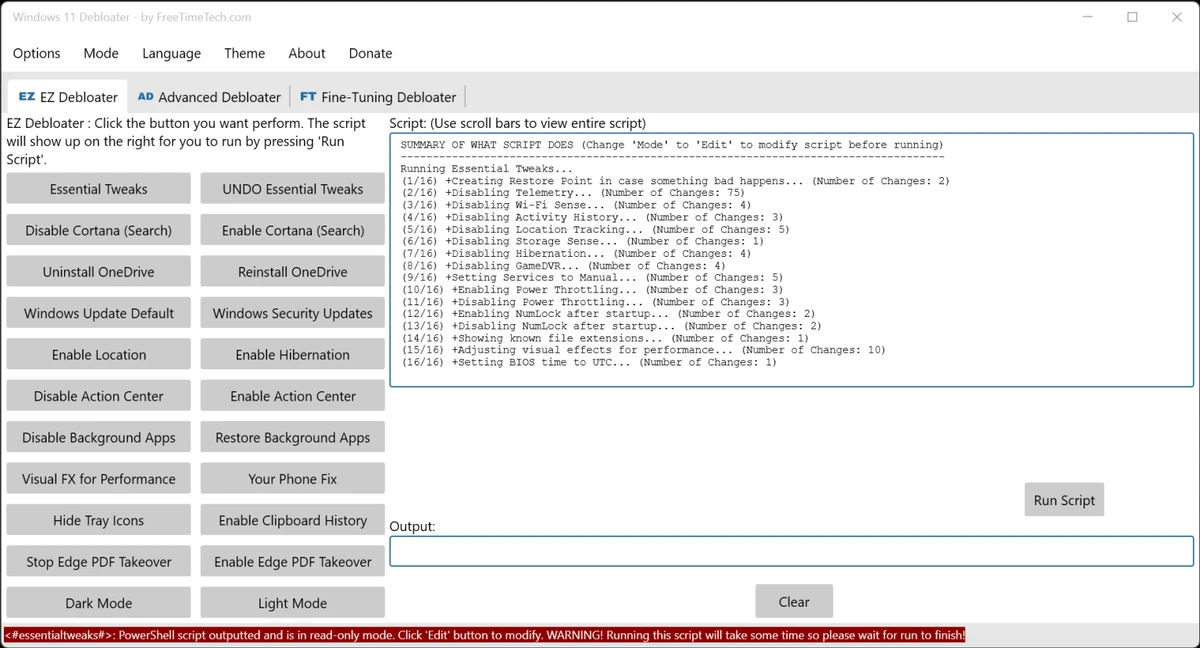

Windows 11 Debloater is a utility designed to help users customize and optimize Windows 11 by disabling unnecessary features, removing built-in applications, and adjusting privacy settings. Rather than applying changes automatically, it generates PowerShell scripts that users can review and execute. During my experience with it, I found it to be a flexible tool that gives advanced users greater control over their Windows environment.
Features of Windows 11 Debloater
- No installation required
- Multi-tab interface for easy navigation
- Generates PowerShell scripts for applying changes
- Essential privacy-oriented tweaks
- Disable telemetry settings
- Disable Wi-Fi Sense and Activity History
- Turn off location tracking and automatic Maps updates
- Disable Feedback, Tailored Experiences, and Advertising ID
- Disable tracking services and error reporting
- Disable Remote Assistance
- Disable Cortana
- Disable background applications
- Prevent Microsoft Edge from being the default PDF application
- Enable or disable built-in Windows apps
- Install third-party applications
- Restore Windows 10 File Explorer
- Show file extensions
- Disable Snap Assist
- Customize taskbar behavior
- Disable Aero Shake
- Various personalization and system tweaks
User Experience
After launching Windows 11 Debloater, I appreciated the fact that there was no installation process. The interface is divided into tabs, making it easy to locate different categories of tweaks without navigating complicated menus. One thing I liked is that pressing the "Essential Tweaks" button does not immediately modify the system. Instead, it displays a PowerShell script that can be reviewed before execution. This approach provides transparency and gives users a chance to understand the changes being applied.
The available tweaks cover a wide range of privacy settings, including telemetry, location tracking, feedback services, and advertising identifiers. Beyond privacy, the software also offers various interface customizations, such as restoring the Windows 10 File Explorer and adjusting taskbar behavior. Although the interface is intuitive, the tool clearly targets experienced users. Since many options affect core Windows features, creating a restore point and backing up important data before making changes is highly recommended.
Who Should Use Windows 11 Debloater?
- Advanced Windows users
- Users concerned about privacy and telemetry
- People who want to remove unnecessary features
- Users looking to personalize Windows 11
- Enthusiasts seeking greater control over system settings
- Users comfortable reviewing PowerShell scripts
Conclusion
Windows 11 Debloater is a powerful customization utility that puts control back into the hands of the user. From disabling telemetry to restoring familiar Windows features, it offers a broad range of tweaks for tailoring the operating system to individual preferences. If you're comfortable making system-level changes and want a more personalized Windows 11 experience, Windows 11 Debloater is definitely worth exploring—but be sure to create a backup before applying modifications.


