


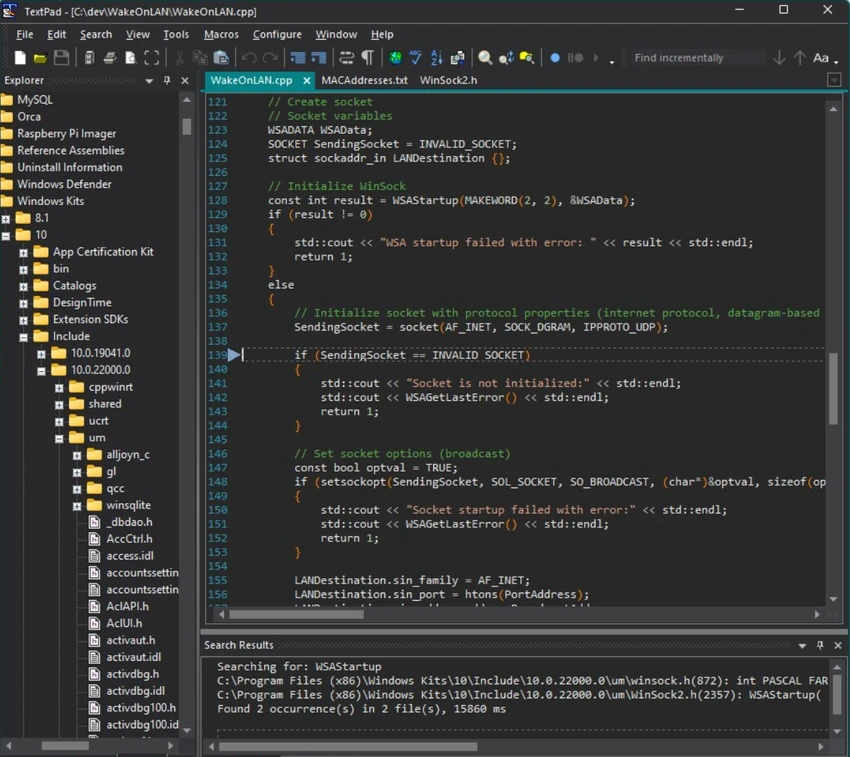

TextPad is a feature-rich text editor for Windows designed to handle everything from simple text editing to software development. Positioned as a capable replacement for Notepad, it combines an intuitive Windows interface with advanced editing tools that appeal to programmers, web developers, technical writers, and everyday users alike.
The editor is built to work efficiently with files of virtually any size, limited only by available system memory. It supports editing multiple documents simultaneously through a tabbed multiple-document interface (MDI), allowing users to work on several files at once while even opening two views of the same document for easier comparison and editing.
TextPad includes a wide range of productivity features that go beyond standard text editing. Users can perform advanced search and replace operations using UNIX-style regular expressions, record keyboard macros to automate repetitive tasks, compare files, manage bookmarks, and take advantage of unlimited undo and redo history. It also offers block (column) selection, automatic word wrapping, smart indentation, visible whitespace, spell checking with dictionaries for multiple languages, and integrated file management tools.
Designed according to Windows interface guidelines, TextPad is approachable for beginners while providing the flexibility and efficiency demanded by experienced users. Whether you're writing code, editing configuration files, preparing documents, or working with large text datasets, TextPad delivers a fast, reliable, and highly customizable editing experience.
Features of TextPad
- Edit files of virtually any size, limited only by available system memory
- Multiple Document Interface (MDI) with tabbed editing
- Open up to two views of the same file
- Warm Start feature restores previously opened files
- Unlimited undo and redo history
- Powerful search and replace with UNIX-style regular expressions
- Search across folders and multiple files
- Built-in file comparison utility
- Record and replay keyboard macros
- Integrated spell checker with dictionaries for 10 languages
- Block (column) selection mode
- Automatic word wrapping and smart indentation
- Visible bookmarks for quick navigation
- Sort text using multiple keys
- Drag-and-drop editing between documents
- Binary file viewer with hexadecimal display
- Integrated file manager for copying, renaming, and deleting files
- Print preview with customizable headers, footers, and page breaks
- Hypertext links from search results and tool output to source lines
- Support for customizable external tools
- Supports UNC paths and long file names
Interface and Usability
TextPad follows the traditional Windows desktop interface, making it immediately familiar to users accustomed to classic Windows applications. The toolbar, menus, status bar, and context menus are logically organized, allowing both beginners and experienced users to access features without a steep learning curve.
The tabbed multiple-document interface makes switching between open files effortless, while the ability to display two views of the same document is particularly useful when editing large files or comparing different sections of text. Context-sensitive help and right-click menus further improve usability.
For developers and technical users, TextPad's macro recorder, advanced search tools, file comparison utility, and customizable external tools significantly improve workflow efficiency. Despite offering numerous advanced features, the interface remains responsive and uncluttered.
Who Should Use TextPad?
- Software developers
- Web developers
- System administrators
- Technical writers
- Students learning programming
- Users looking for a more powerful alternative to Notepad
- Anyone working with large text files or source code
Conclusion
TextPad successfully bridges the gap between a simple text editor and a lightweight code editor. It delivers a comprehensive set of editing tools, excellent performance with large files, advanced search capabilities, macro automation, and file comparison features while maintaining a familiar Windows interface.


