


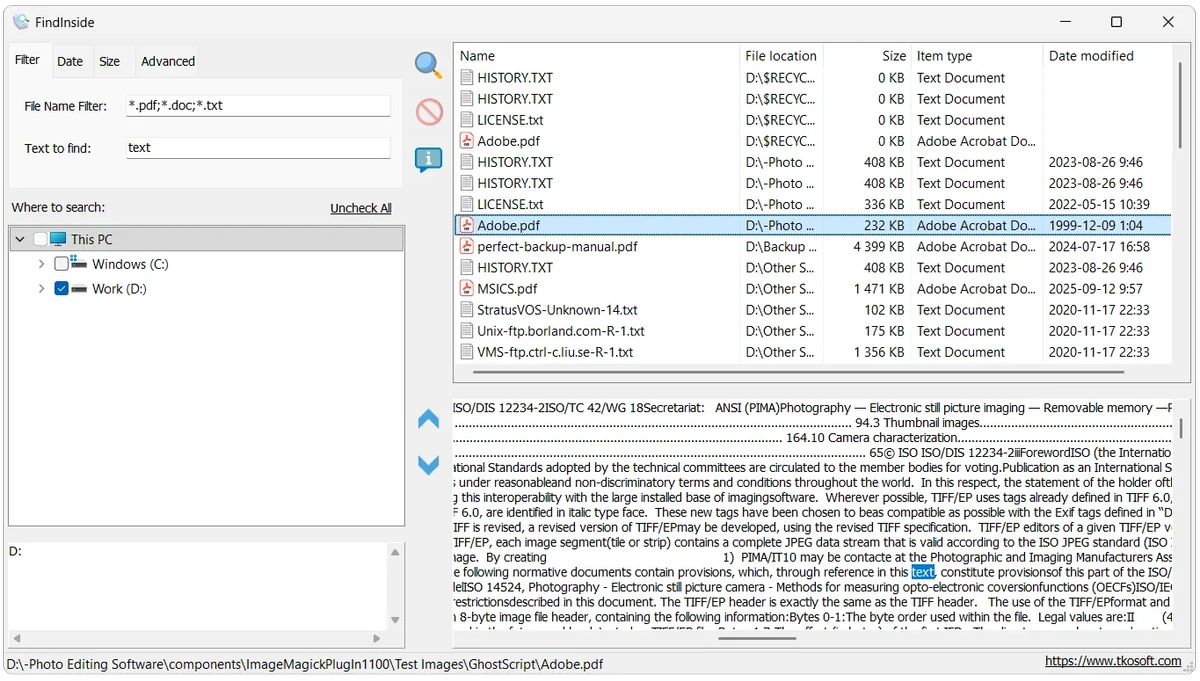

indInside is a free Windows file content search utility designed to help users locate information hidden inside documents and files. Unlike standard file searches that only look at file names, FindInside searches the actual text contained within documents, making it easier to find specific words, phrases, or expressions stored across large collections of files.
The software supports a wide range of document and text-based formats, including PDF files, Microsoft Word documents, Excel spreadsheets, PowerPoint presentations, OpenDocument files, RTF files, TXT files, CSV files, XML files, JSON files, HTML files, Markdown files, source code files, log files, and configuration files.
FindInside is built for users who need a more detailed way to search through folders and document libraries. It allows searches across selected folders and subfolders, with additional filtering options such as file name masks, date ranges, file size limits, and hidden file inclusion.
One of its useful features is the built-in text preview area. After finding a matching file, users can view the relevant content directly inside the application, with the searched phrase highlighted for easier identification. This helps reduce the need to open files individually when looking for specific information. Available as freeware for both personal and commercial use, FindInside provides a practical solution for users who frequently work with large numbers of documents and need a reliable way to search within their contents.
Features of FindInside
- Search inside document contents instead of only searching file names
- Supports PDFs, DOC and DOCX files, spreadsheets, presentations, and other document formats
- Works with text-based files including TXT, CSV, XML, JSON, HTML, Markdown, and source code files
- Searches through selected folders and optional subdirectories
- Built-in preview window for viewing found text
- Highlights matching search terms inside document previews
- Provides previous and next match navigation
- Supports wildcard file name masks such as *.*, *.pdf, and *.docx
- Includes file date filters for created, modified, or accessed dates
- Allows minimum and maximum file size filtering
- Offers optional searching of hidden files
- Freeware license for personal and commercial use
Interface and Usability
FindInside focuses on functionality rather than unnecessary complexity. The workflow is centered around entering search criteria, selecting locations, applying filters, and reviewing matching results. The built-in preview area makes reviewing search results more convenient because users can see matching text without opening each document separately. Highlighted search terms help identify relevant sections quickly, especially when working with longer files.
The available filters provide flexibility for users who need more precise searches. Options such as file masks, folder selection, dates, file sizes, and hidden file searches allow searches to be narrowed based on specific requirements.
For users who regularly manage document collections, logs, source code, or other text-based files, FindInside provides a straightforward approach to locating information stored inside files.
Who Should Use FindInside?
- Office users managing many PDF, Word, spreadsheet, and presentation files
- Developers searching through source code, logs, and configuration files
- Professionals organizing document archives
- Users who need more detailed searches than standard Windows file search tools provide
- Anyone looking for a free document content search utility
Conclusion
FindInside is a practical free Windows search utility for users who need to locate text inside documents and files quickly. Its ability to search through PDFs, Office documents, text files, source code, and other formats makes it a useful alternative to basic file name searches.
The preview feature and flexible filtering options improve the search experience by helping users identify relevant information without manually opening multiple files. If you regularly work with large document collections or need a simple way to find specific content stored across folders, FindInside is worth exploring.


